
A real-time blur app for outdoor mobile streams
The Android and iOS streaming apps blur unregistered faces in live camera video before sending it to YouTube or CHZZK. Register yourself to keep your face visible. Check the processed video at your filming location before broadcasting.
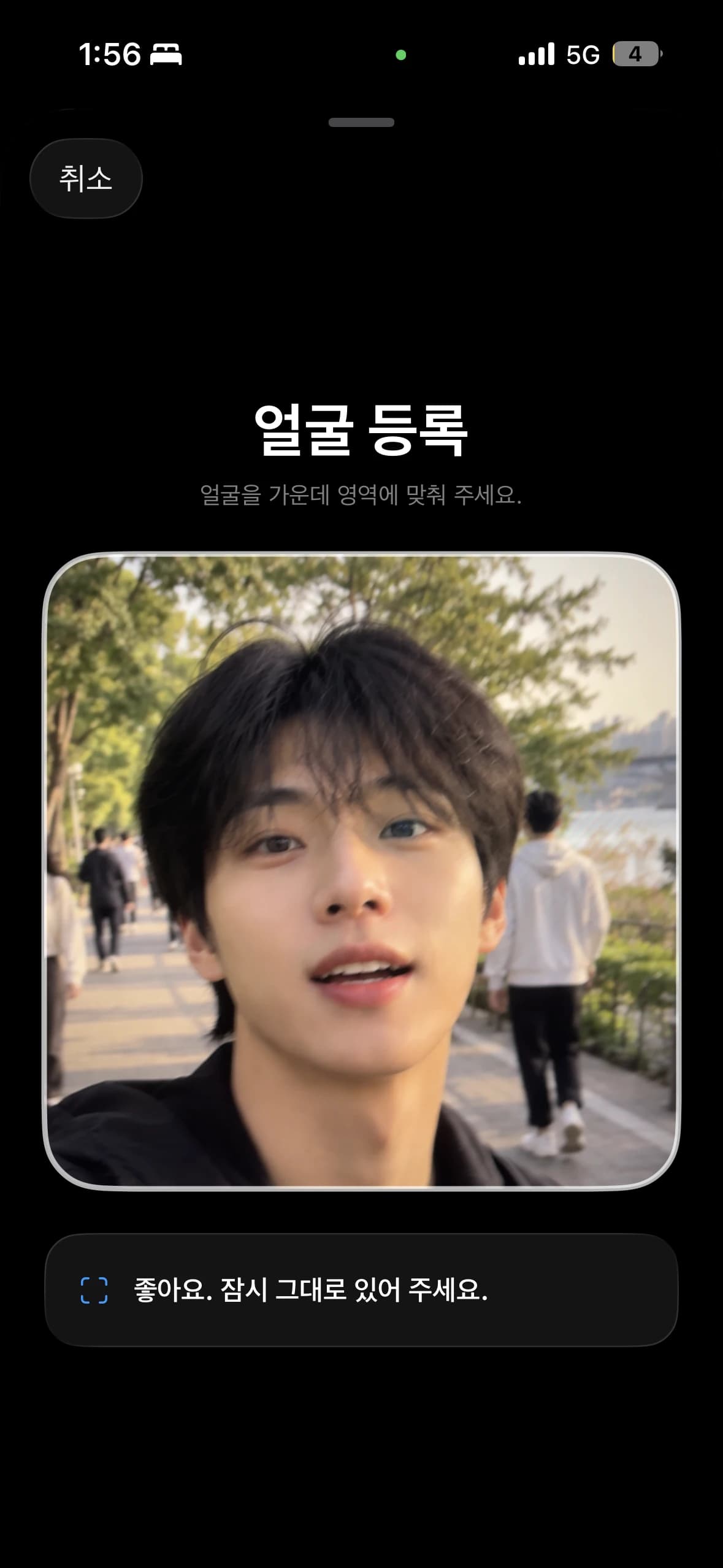
1. Register the people you want to show
Register your face to keep it visible while blurring others. You can register guests individually. Check your plan for the face registration limit.
Check a frame containing registered and unregistered faces. Test head turns and camera movement too.
2. Connect your account and save settings
Connect YouTube or CHZZK in the app. Check your channel, broadcast title and other settings, then save them before preparing the stream.
The web demo previews camera processing. Use the app for actual broadcasts. Find installation links in the home page download menu.
3. Enable anonymization and follow the platform steps
For YouTube, prepare the stream before selecting the live start action. For CHZZK, inspect the result before connecting RTMP because that connection starts the broadcast.
Lighting, movement, network conditions and face sizes change outdoors. Check framing and face processing, and reduce scenes containing information you do not want to share.
Frequently asked questions
Can I automatically blur faces on a phone stream?
The Android and iOS apps blur unregistered faces in camera video in real time. Registered faces stay visible, and you can send the processed video to YouTube or CHZZK.
How do I keep the streamer's face visible?
Register the streamer's face and enable face anonymization. Check that the preview keeps registered faces visible and blurs unregistered faces before starting.
Is this a feature inside the YouTube or CHZZK app?
InnoLive processes camera video in its own app and sends it to your connected YouTube or CHZZK account. It does not add face blur controls inside those platforms' apps.